
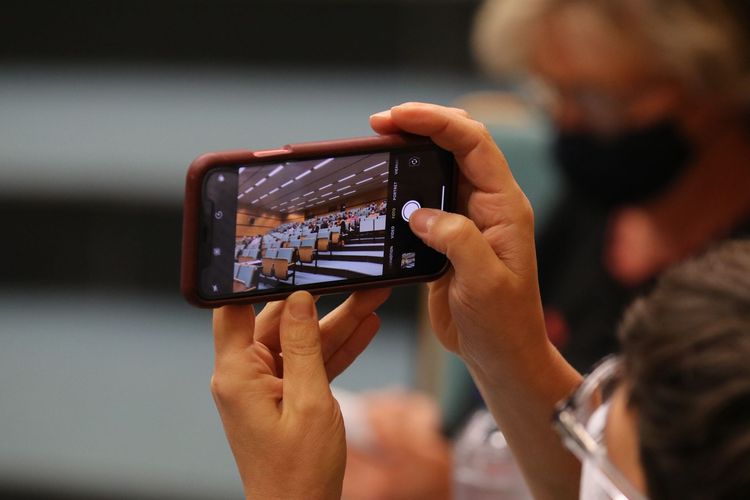
Camera notes should explain how the phone behaves outside perfect launch-event samples.
How to Check a Phone Camera Before a School Event
School events are hard to repeat. A concert, award ceremony, science fair, sports day, or graduation moment happens once, often in difficult light and from a crowded seat. A phone camera that seems fine in the kitchen may struggle in a gym, auditorium, or bright field. This guide helps you test the camera before the event, not while a child is already walking across the stage.
Tech Mobile Review has separate guides on comparing phone cameras and checking display issues. This article is narrower. It focuses on a practical pre-event routine for ordinary users who want fewer missed shots and less storage panic.
Test from the distance you will probably have
Do not test the camera only from arm’s length. Stand across a room, zoom in, and photograph a person or object about the size your subject will be at the event. Digital zoom can make faces soft, especially in dim light. If your phone has multiple lens options, compare the main camera, portrait mode, and zoom level before deciding what you will use.
Look at the photo after taking it. Pinch in on faces, text, and edges. A photo that looks sharp as a thumbnail may be blurry when viewed full size. If the zoom looks weak, plan for wider shots that capture the moment rather than trying to force a close-up from too far away.
Check the event’s likely lighting
Auditoriums often mix dark seating with bright stage lights. Gyms can have overhead lights that flicker or flatten color. Outdoor fields may swing between harsh sun and shade. Test in similar conditions if you can. Turn down the room lights, stand near a window, or record a short clip under indoor lighting.
Night modes can help with still subjects, but they may blur movement. Children walking, singing, jumping, or receiving awards do not hold still for long exposures. If the scene includes movement, take several normal photos in bursts rather than trusting one night-mode shot. For video, check whether exposure pumps when the camera moves from a bright stage to a darker wall.

Clear storage before the day starts
A full phone turns a simple event into a scramble. Check free storage the day before. Delete duplicate videos, move old files, or offload apps you do not need. Do not wait until the event starts to decide what can be removed. If cloud backup is part of your routine, confirm it completed before deleting local copies.
Storage matters more for video. A few minutes of high-resolution video can use much more space than a set of photos. If you only need a clip for family sharing, you may not need the highest resolution. Check your camera settings and choose the format you can store, edit, and send without creating work later.
Charge for recording, not only standby
Recording video, using zoom, and keeping the screen bright can drain a phone quickly. Charge before leaving. If the event is long, bring a power bank that you have already tested with your cable. A power bank with a confusing label or weak cable is not helpful in a crowded auditorium.
If you plan to travel by air with power banks, check current airline and transport rules through official sources before packing. For ordinary local school events, the simpler issue is readiness: cable fits, phone charges, and the bank has enough charge. Tech Mobile Review’s battery replacement guide has a wider battery-health angle if your phone drains unusually fast.
Record a sound check
People often test photos and forget audio. Record a 20-second video in a room with background noise. Play it back with and without headphones. Listen for muffled sound, finger noise over the microphone, case vibration, or a Bluetooth device accidentally taking over audio. If the phone is connected to earbuds, a car, or a speaker, disconnect before the event unless you know exactly how audio will record.
Do not narrate over the important part unless that is intentional. Parents often discover later that the loudest sound in the clip is their own whisper. Hold the phone steady, keep fingers away from microphones, and record a short test before the program begins if the venue allows it.
If you use a case, test with the case on. Some rugged or wallet cases partially cover microphones or make the phone harder to hold steady. If you use a tripod or grip, practice attaching it at home. Event seating is not the place to learn that a clamp presses the volume button or blocks the charging port.
Turn off avoidable interruptions
A notification banner can cover the screen at the wrong time. A call can stop or interrupt recording depending on settings and apps. Use a focus mode or do-not-disturb setting that still allows emergency contacts if needed. Check it before the event, because focus settings can be more complicated than people expect.
Also check brightness and auto-lock. If the screen dims aggressively, you may think the camera stopped or miss a framing change. If the phone overheats in direct sun, move it into shade between shots. A phone is a small computer doing heavy work during video capture.
Respect school and child privacy rules
Some schools restrict photography, livestreaming, or posting images of other children. Check the event guidance before recording. Even when recording is allowed, think before posting. A video meant for grandparents may include children whose families did not agree to public sharing. Privacy is not only a technology setting; it is a social decision.
The Federal Trade Commission’s consumer advice at consumer.ftc.gov is useful background for privacy and online sharing habits. For school-specific rules, the school notice or organizer is the source that matters. When in doubt, keep the recording private and share directly with close family.
Make a simple shot plan
Decide what matters most: one wide video, a few still photos, or a short clip of a specific moment. Trying to capture everything can make you miss the event itself. For a concert, you might record one song and take photos before or after. For sports, you might capture warmups, one action sequence, and a team photo.
A shot plan also protects battery and storage. It gives you permission to put the phone down. The best technical result is not always the longest recording. It is the file you can find, watch, and share without regret.
A ten-minute pre-event camera checklist
The day before, clean the lens, test zoom from across a room, record a low-light clip, check storage, charge the phone, test the power bank, review privacy rules, and turn on focus mode. At the venue, take one test photo from your seat and record five seconds of video before the important moment begins.
After the event, back up the files before heavy editing. Keep one original video until you know the shared version works. If you send clips through a messaging app, check whether it compresses them. For grandparents or relatives who want a clear copy, a cloud album or direct file share may preserve more detail than a chat preview.
That routine will not fix every bad seat or dim stage, but it removes the avoidable failures. You arrive knowing what your phone can do, where it struggles, and which settings are safe to leave alone.
Camera and privacy sources
- Federal Trade Commission: Consumer advice
- National Institute of Standards and Technology: Privacy Framework
- Tech Mobile Review: Compare phone cameras without one nice photo