
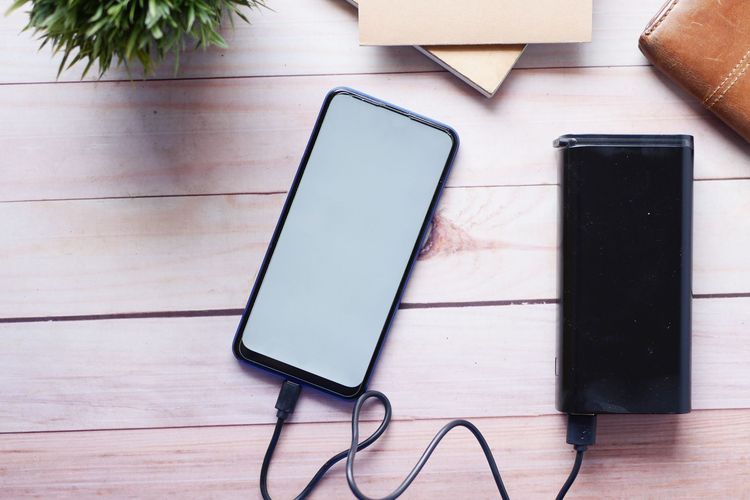
Battery reviews should separate marketing charge speeds from sustainable daily use.
By Tech Mobile Review Editorial Team
Editorial note: This article is general consumer technology information. It is not repair, electrical, legal, or warranty advice. If a battery is swollen, leaking, unusually hot, damaged, or causing the screen or back panel to lift, stop using the device and contact the manufacturer or a qualified repair provider.
A weak phone battery can make a perfectly good device feel old. The phone leaves home at 100 percent and reaches lunchtime with a warning. A video call drains more than expected. Navigation heats the device. A background app seems to wake up all day. It is tempting to decide immediately that the phone must be replaced.
Sometimes replacement is the right answer. But before spending money, it is worth doing a practical battery settings check. The goal is not to turn your phone into a low-power brick. The goal is to separate normal battery aging from settings, apps, signal problems, and charging habits that can make the situation look worse.
Start With The Battery Usage Screen
Open the battery section in settings and look at the last 24 hours and the last several days if your phone offers both views. Do not only look for the app with the biggest number. Ask whether the number makes sense.
A navigation app should use power during a long drive. A video app should use power during streaming. A small utility app that uses hours of background activity deserves more attention.
Check screen-on time, background time, and any notes from the operating system about apps using unusual energy. If one app is clearly out of line, update it, limit background refresh, reduce location access, or uninstall it temporarily to test whether battery life improves.
Screen Brightness Is Still A Major Factor
Modern screens are efficient, but a bright display still matters. Outdoor brightness, always-on display settings, high refresh rates, long auto-lock times, and constant video can all reduce daily endurance. Instead of setting brightness painfully low, use practical changes: shorten auto-lock, turn off always-on display if you do not need it, and check whether adaptive brightness is behaving well.
A high refresh rate can make scrolling smoother, but some users will prefer the extra battery life from a standard setting. The best choice depends on whether smoothness or endurance matters more to you.
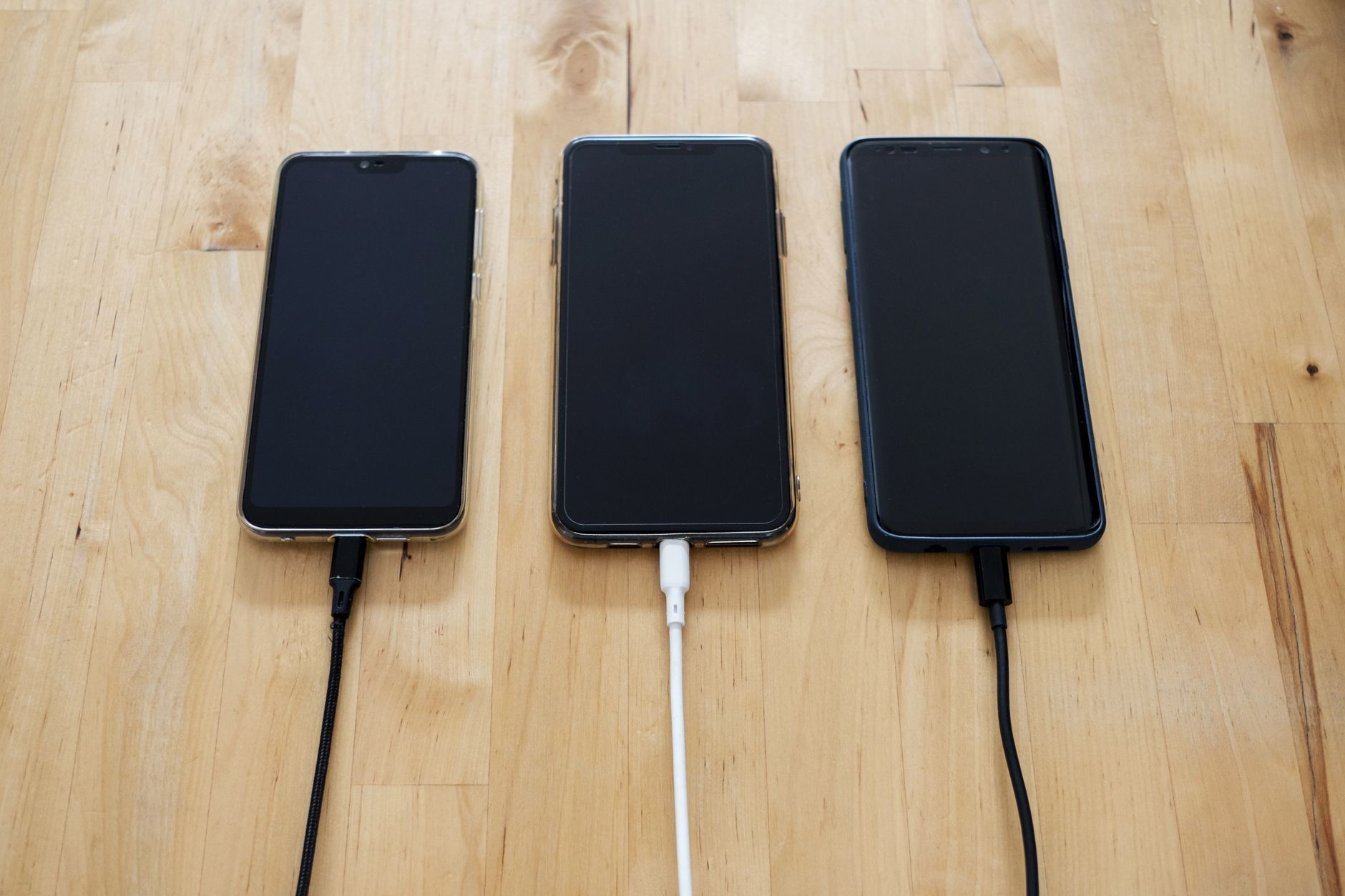
Weak Signal Can Drain More Than People Expect
A phone in poor coverage may work harder to stay connected. If battery drain is worst in one office, train route, basement, or apartment corner, signal strength may be part of the story. Wi-Fi calling, airplane mode in dead zones, or changing where the phone sits on a desk can sometimes help more than another charger.
This is also why battery tests online may not match your life. A reviewer’s strong signal environment is not the same as your commute, building, or rural weekend.
Charging Habits: Look For Heat, Not Perfection
Battery advice often becomes too strict. You do not need to panic every time a phone reaches 100 percent. But heat is worth taking seriously. Charging under a pillow, in direct sun, in a hot car, or while gaming heavily can make the battery work in worse conditions.
Use optimized charging has if your phone offers them. Remove a thick case during hot fast charging if the device feels warm. Save fast charging for moments when speed matters, and use slower charging when time does not matter.
Manufacturer pages are useful because battery tools are not identical across devices. Apple explains service and battery replacement basics on its iPhone battery service page. Google documents battery and charging help for Pixel phones in Pixel Phone Help. Samsung users may see battery diagnostics and care tools through Samsung’s device care has and Samsung Members support materials. Use these sources to locate the setting names for your own model, not to assume every phone has the same menu.
Storage Pressure Can Make A Phone Feel Worse
A nearly full phone may not directly mean the battery is bad, but it can make the device feel sluggish, increase background cleanup, and complicate updates. Review large videos, downloaded media, duplicate files, and app caches. Keep enough free space for updates and normal operation.
If your battery complaint is really a speed complaint, freeing storage and updating software may change your impression of the phone. If battery percentage still falls quickly after that, you have better evidence.
A Practical Checklist
-
Review battery usage by app over several days.
-
Limit background refresh for apps that do not need it.
-
Check location permissions, especially always-on access.
-
Shorten auto-lock and review always-on display settings.
-
Notice whether poor signal areas match heavy drain.
-
Use optimized charging and avoid heat during charging.
-
Free storage if the phone is nearly full.
-
Restart after major updates and give indexing time to settle.
Do these changes for three normal days. A single quiet Sunday is not a fair test if weekdays include commuting, maps, calls, and hotspot use.
Separate Battery Aging From Daily Drain
Battery aging and daily drain are related, but they are not the same thing. Battery aging describes the battery’s reduced ability to hold charge over time. Daily drain describes how quickly the phone uses the charge available today.
A worn battery can drain quickly, but a healthy battery can also drain quickly if the phone is working hard all day. Separating those two ideas keeps the decision practical.
This distinction matters because the fixes are different. Aging may require battery service or a new phone. Daily drain may improve with settings, app updates, signal changes, or different charging habits. If you mix the two together, every problem looks like a purchase decision.
A useful test is to compare two kinds of days. On a heavy day, note maps, camera use, hotspot, calls, games, and screen brightness. On a lighter day, note whether the phone still drains unusually fast while mostly idle. Heavy-use drain is often expected. Idle drain is more suspicious and points toward background apps, signal issues, sync loops, or software trouble.
What To Do After A Software Update
Battery life can feel worse shortly after a major update because the phone may be indexing files, updating apps, rebuilding photo libraries, or learning usage patterns again. Give it a short adjustment period before making a final judgment, unless the phone is overheating or showing safety signs.
After updates, check whether location permissions changed, whether background app refresh is still appropriate, and whether any app is stuck using unusual battery. Restarting once after updates can also clear ordinary temporary problems.
If drain remains high for several days, the battery usage screen becomes more useful evidence. At that point, compare the same app across several days rather than reacting to one bad afternoon.
Keep Notes Before Spending Money
Write down the battery percentage at breakfast, lunch, dinner, and bedtime for three typical days. Add one line about what you did: commute navigation, video calls, photos, weak signal, gaming, or mostly messaging. This simple record prevents memory from exaggerating the worst moment.
If you contact support or a repair shop, those notes are more useful than saying ‘the battery is bad.’ They show when the problem happens and what conditions make it worse. A clear pattern can save time and help you choose between settings changes, battery replacement, or a new device.
When Replacement Or Repair Makes Sense
Replacement becomes more reasonable when battery health is low, the phone shuts down unexpectedly, a normal day is impossible even after settings changes, or the device no longer receives security updates. Repair may make sense if the phone is otherwise good and an official battery replacement is available at a sensible price.
Do not ignore safety signs. A swollen battery, lifting screen, chemical smell, repeated overheating, or charging instability should be treated as a repair issue, not a settings issue.
Decide Between Settings Changes, Battery Service, And Replacement
A battery settings check will not make an old battery new. It can, however, prevent a rushed purchase. If settings were the main problem, you get more time from the phone. If the battery really is worn out, you make the replacement decision with clearer evidence.
As a practical example, imagine a two-year-old phone that loses 35 percent during a commute with navigation, music streaming, weak signal, and high brightness. That may be heavy normal use. Now imagine the same phone losing 25 percent overnight while untouched on Wi-Fi. That second pattern points more strongly toward background activity, software trouble, or a battery issue worth investigating.
The best battery advice is practical rather than obsessive: reduce obvious waste, avoid heat, keep software current, and replace the battery or phone when the device no longer supports your day.